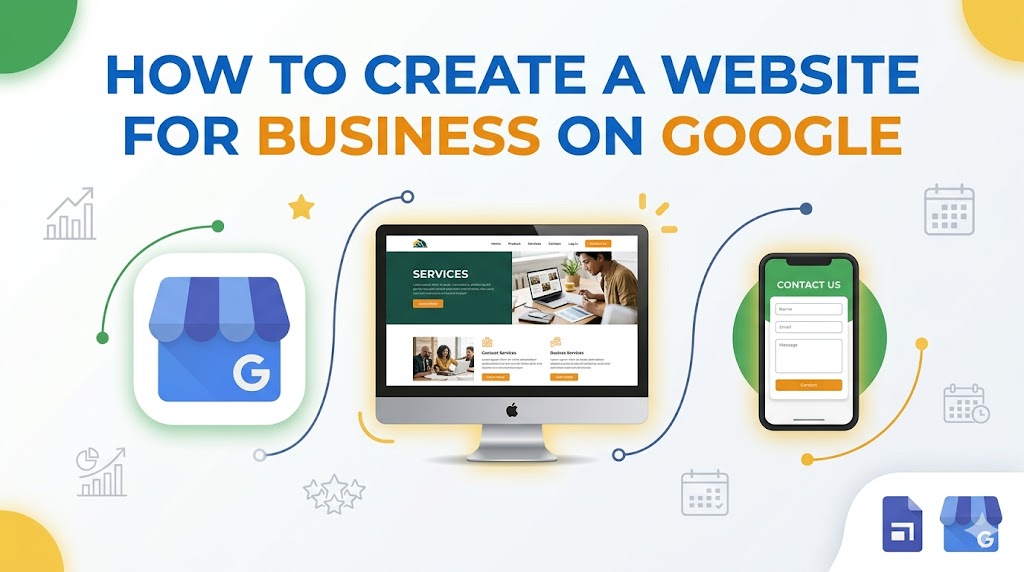
Why Choose Google for Your Business Website?
Before diving into the technical steps, it’s worth noting that using Google’s ecosystem offers a few major perks:
- Zero Initial Cost: You can build and host a site for free.
- Seamless Integration: It connects effortlessly with Google Drive, Maps, and Calendar.
- Mobile-Ready: Modern Google Sites are automatically responsive, meaning they look great on phones and tablets without extra work.
Step-by-Step Guide to Building Your Site
1. Set Up Your Foundation
The best tool for this is Google Sites.
- Access the Platform: Sign into your Google account and head to sites.google.com.
- Pick a Template: You don’t need to be a designer. Google offers a Template Gallery with layouts specifically for small businesses, events, or portfolios.
2. Design and Customize
This is where you make the site yours. The interface is “drag-and-drop,” so you don’t need to know a single line of code.
- Add Content: Use the “Insert” tab to add text boxes, images, or embed YouTube videos and Google Maps (essential for local businesses!).
- Create Pages: Add an “About Us,” “Services,” and “Contact” page via the Pages tab.
- Brand It: Upload your logo and choose a theme that matches your brand colors.
3. Claim Your Digital Real Estate
Every business needs a Google Business Profile. This is what makes you show up on Google Maps and local search results.
- Go to the Business Profile page.
- Verify your business address.
- Link your new Google Site to this profile so customers can find you easily.
Pro-Tips for a Professional Finish
- Get a Custom Domain: While a free URL looks like
sites.google.com/view/yourbusiness, you can connect a custom domain (likewww.yourbusiness.com) to look more established. - Keep it Fast: Avoid using massive, uncompressed images. Fast-loading sites rank better on search results.
- The “Call to Action”: Ensure every page has a clear goal—whether it’s a “Call Now” button or a contact form.
Final Launch Checklist
- Preview: Use the “Preview” button to see how the site looks on a mobile phone.
- Publish: Click the big blue Publish button.
- Update: A website isn’t a “set it and forget it” project. Update your Google Business Profile regularly with new photos or holiday hours to keep your ranking high.